 Inverity
Compressing Images for Email: What Actually Matters
Date Published
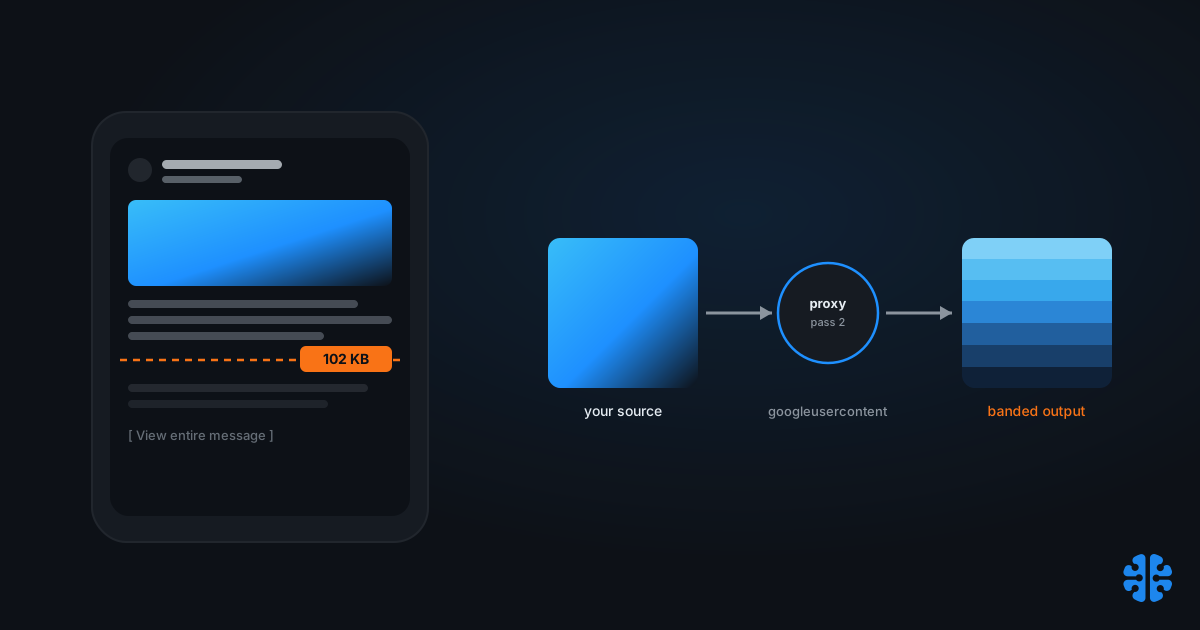
TL;DR >- Gmail clips messages once the HTML crosses roughly 102 KB, and it counts your raw HTML and CSS, not your image payload (email-bugs, GitHub). Compressing images does nothing to prevent the clip.- Since December 2013, Gmail routes every embedded image through a googleusercontent.com proxy and serves a cached, transcoded copy (Litmus). That is a second compression pass you never see and never control.- WebP registers 97.62% support on Can I Email, yet Gmail only partially supports it, converts WebP to JPG, and drops WebP animation (Can I Email). AVIF is effectively unsupported.- The real email compression lever is HTML and CSS minification. For images, upload at 2x the display size, pinwidthandheight, and stay with JPG, PNG, or GIF.
Most email image advice optimizes the wrong variable. Teams spend a day shaving a hero image from 90 KB to 60 KB to "beat the Gmail clip," then watch the message get clipped anyway. The clip was never about image weight. And the crisp JPEG they shipped arrives softened and blotchy in Gmail regardless, because a machine they don't control re-encoded it in transit.
Email is the one channel where you hand your bytes to a black box and lose the last word on how they look. You cannot serve srcset. You cannot content-negotiate AVIF. You cannot stop Gmail from proxying, caching, and recompressing what you send. So the winning strategy is not squeezing images harder. It is understanding exactly which levers still work, and which ones are illusions.
Do images count toward Gmail's 102 KB clip?
No. Gmail truncates a message once its HTML exceeds roughly 102 KB, and the counter measures your raw HTML and CSS, not the weight of your images (email-bugs, GitHub). A 2 MB photo and a 20 KB photo push you toward the clip by exactly the same amount: zero. The clip is a code-size limit wearing a file-size costume.
This distinction rewrites the whole optimization task. When Gmail clips a message, it hides everything past the threshold behind a "View entire message" link, which typically buries your unsubscribe footer and any conversion tracking below it. The fix is not lighter images. It is leaner markup: minify the HTML, strip redundant inline styles, collapse nested tables, and cut boilerplate comments that bloated templates carry.
So where does image weight actually bite? Two other places. First, total message size and attachment reputation, which spam filters weigh independently of the clip. Second, the render itself, because Gmail's proxy will recompress whatever you send. Image discipline matters in email. It just does not buy you a single byte against the 102 KB ceiling.
Citation capsule: Gmail truncates messages past roughly 102 KB of HTML, and that threshold counts markup and CSS, not image payload (email-bugs, GitHub, 2018). Compressing images cannot prevent the clip; only minifying HTML and CSS can. The email image lever and the clip lever are separate systems.
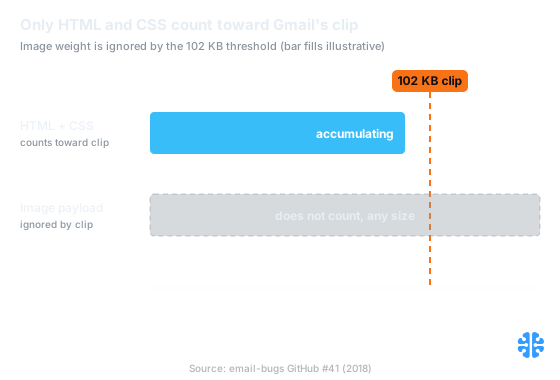
Only HTML and CSS bytes count toward Gmail's 102 KB clip; image payload is ignored (Source: email-bugs GitHub #41, 2018).
Gmail's image proxy is a second compression pass you don't control
Since December 2013, Gmail has routed every embedded image through its own proxy on googleusercontent.com and served a cached, transcoded copy rather than fetching from your server (Litmus). Your carefully encoded JPEG never reaches the reader. A Gmail-generated derivative does. The proxy URL looks like https://ci*.googleusercontent.com/proxy/..., and it is the version your subscribers actually see.
Here is the part that stings for anyone who cares about quality. Senders have repeatedly reported that the proxy recompresses already-compressed images and introduces visible artifacts, banding, and softening, though Litmus noted it had not reproduced the effect directly, so treat it as reported rather than fully confirmed (Word to the Wise). Either way, the mechanism is real: recompressing a lossy image is generation loss, the same quality decay we cover in recompression and generation loss.
This reframes your job. You are not encoding the final image. You are encoding the input to someone else's encoder. That means leaving headroom: ship at higher quality than you think you need, because the proxy will spend some of it. Crushing a logo to q40 before Gmail gets to it stacks two lossy passes, and the second one you cannot tune. Note also that this caching applies to Gmail webmail and its mobile apps, not to desktop clients pulling over POP or IMAP (Litmus), so the same message can look different across a single subscriber's devices.
Citation capsule: Gmail has proxied and cached every embedded image through googleusercontent.com since December 2013, serving a transcoded copy instead of your original (Litmus, 2013). Senders report this second pass adds artifacts to already-compressed images, so you are encoding an input to Gmail's encoder, not the final render.
Which image formats actually render in email?
Stick to JPG, PNG, and GIF. Those three are the only raster formats that render reliably across the major clients in 2026. WebP looks tempting on paper: it registers 97.62% support on Can I Email, 88.1% full plus 9.52% partial (Can I Email). But Gmail sits in that partial bucket, converts WebP to JPG, and refuses WebP animation, so the format buys you nothing you can rely on.
AVIF is worse for email. It is effectively unsupported across mainstream clients, so an AVIF email image risks rendering as a broken box for most of your list (Can I Email). This is the inverse of the open web, where WebP now appears on about 11% of pages and AVIF on roughly 0.7%, against JPG and PNG at about 26% each (Web Almanac 2025). Email lags the web by years, and next-gen formats have not arrived.
Outlook adds its own hazard. Outlook for Windows renders with Microsoft Word's engine, which handles CSS weakly and can force a transparent PNG onto a white or opaque background (Litmus). A logo that floats cleanly on a dark template elsewhere can arrive boxed in white here. The safe path is to flatten transparency against your intended background before sending.
Format | Gmail | Outlook (Windows) | Apple Mail | Use it for |
|---|---|---|---|---|
JPG | Full (recompressed by proxy) | Full | Full | Photos, complex imagery |
PNG | Full (proxy may recompress) | Full, transparency risk | Full | Logos, flat UI, text-on-image |
GIF | Full (animation kept) | First frame only | Full | Simple animation, fallbacks |
WebP | Partial, converted to JPG | No | Full | Nothing reliable; avoid |
AVIF | No | No | Partial | Nothing; avoid |
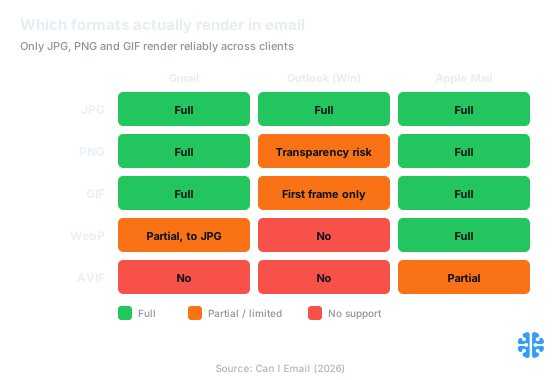
Only JPG, PNG and GIF render reliably across every major client (Source: Can I Email, 2026).
Host or embed: where should email images live?
Host them and link by URL in almost every case. Embedding images inline (base64 or CID attachments) inflates the HTML, which is the exact thing the 102 KB clip measures, and it hurts deliverability with several filters. Hosted images stay outside the code-size budget entirely, and Gmail is going to proxy and cache them anyway (Litmus), so a remote URL is what it wants.
The tradeoff is the well-known one: hosted images depend on the client loading remote content, and many clients block that by default until the reader clicks "show images." That is why every email needs real HTML text, live links, and alt text that carries the message when images are suppressed. Inline embedding sidesteps image-blocking but pays for it in clip risk and spam scoring, a bad trade for marketing mail.
Decision | Host and link | Embed inline (base64/CID) |
|---|---|---|
Counts toward 102 KB clip | No | Yes, directly |
Survives image blocking | No, needs "show images" | Yes, renders offline |
Deliverability impact | Neutral to positive | Often negative |
Gmail behavior | Proxied and cached | Still processed, heavier HTML |
Best fit | Marketing and bulk email | Rare: transactional, tiny icons |
Whichever you choose, the per-asset logic still applies. A promo hero and a footer icon do not deserve the same treatment, the same argument we make against one-size compression in why blanket compression hurts your CMS.
Keeping images crisp through the proxy
Give the proxy clean, oversized input and let CSS shrink it. Because email has no reliable srcset, the durable trick is to upload at 2x your intended display dimensions and constrain the render with explicit width and height attributes. The image ships enough pixels for high-DPR screens, and the proxy recompresses a generous source instead of a starved one, which leaves more quality standing after its pass.
A few rules follow from everything above. Keep JPEG quality higher than you would for the web, roughly q80 and up, since Gmail spends some of that budget for you. Flatten transparency against the real background color to dodge Outlook's white-box behavior (Litmus). Set width and height on every image so the layout holds before images load. And decide format by content, not by fashion: photos as JPG, flat graphics and logos as PNG, motion as GIF. That per-image, content-first reasoning is the same discipline behind content-adaptive per-image quality.
The email compression lever, then, is not your JPEG slider. It is your HTML: minify the markup to stay under the clip, host images to keep them out of the code budget, and hand the proxy a 2x source so its uncontrolled second pass has room to work. For the wider theory of why bytes are a poor proxy for quality, see our complete guide to image compression and why file size is the wrong metric.
FAQ
Does the 102 KB clip include images or just HTML?
Just HTML and CSS. Gmail truncates a message once its markup crosses roughly 102 KB, and image payload does not count toward that limit (email-bugs, GitHub). To avoid the clip, minify your HTML and cut redundant inline styles. Compressing images has no effect on whether Gmail clips the message.
Why does my logo look washed out in Gmail but fine elsewhere?
Because Gmail proxies and recompresses every embedded image through googleusercontent.com (Litmus). Senders report this second pass adds banding and softening to already-compressed graphics. Ship the logo at higher quality and 2x size so the proxy has headroom, and flatten transparency against your background.
Can I use WebP or AVIF in email in 2026?
Not reliably. WebP shows 97.62% support on Can I Email, but Gmail only partially supports it and converts it to JPG with no animation (Can I Email). AVIF is effectively unsupported across mainstream clients. Stick to JPG, PNG, and GIF, the only consistently rendered raster formats.
Why do transparent PNGs get a white box in Outlook dark mode?
Outlook for Windows renders with Microsoft Word's engine, which handles CSS poorly and can force transparent PNGs onto a white or opaque background (Litmus). The reliable fix is to flatten transparency against your intended background color before sending, rather than depending on the alpha channel to survive.
Should I embed images or host and link to them?
Host and link in almost all cases. Embedding inline inflates your HTML, counts against the 102 KB clip, and often hurts deliverability. Hosted images stay outside the code budget, and Gmail caches them through its proxy anyway (Litmus). Always pair hosted images with descriptive alt text for blocked-image cases.